 CleanTable
Web table to Markdown in one click
Pasting a web table into an AI chat often turns it into a line of words. Copy it as Markdown instead: rows and columns survive.
- Free, no row limit
- Runs locally
- Chrome & Edge
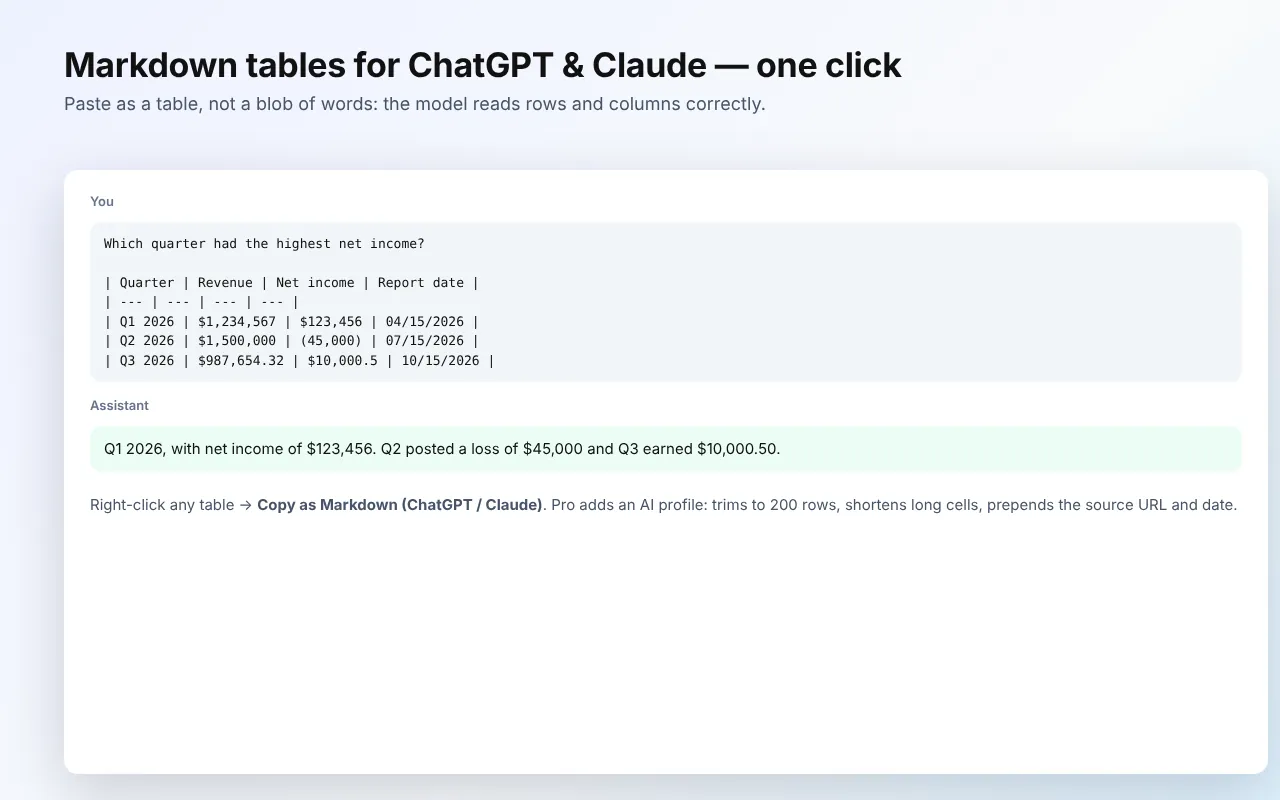
How to copy a table as Markdown
- Right-click the table → CleanTable → Copy as Markdown (ChatGPT / Claude), or press Alt+Shift+M.
- Paste into ChatGPT, Claude, a GitHub README, an issue, Notion or any Markdown editor.
Example of what you get:
| Country | Population | Year |
|---|---|---|
| India | 1,428,627,663 | 2023 |
| China | 1,425,671,352 | 2023 |
Why Markdown works better than a plain paste
A browser copies layout, not structure. In a plain text box, cell boundaries disappear, merged cells repeat or vanish and icons turn into noise. A Markdown table keeps the header-to-cell relationship in plain text, which is easy for people and for language models to read.
Tips for better answers
- Leave out columns you do not need (click a column header in the popup).
- Tell the model that the first row is the header.
- For long tables, ask for a filter or summary first, then drill down.
AI profile (Pro)
Pro adds a Markdown profile made for AI assistants: it trims to 200 rows, shortens very long cells to 120 characters and adds a Context: line with the source URL and date, so you can always tell where the data came from.
JSON too
The same menu has Copy as JSON for code, APIs and quick scripts.
Frequently asked questions
Is Markdown export free?
Yes. Copy as Markdown and Copy as JSON are free with no row limit. The 200-row AI profile is part of Pro.
Does it work for GitHub README and Notion?
Yes. The output is a standard pipe table; paste it wherever Markdown tables are supported.
What if the page has several tables?
A picker highlights them so you can click the one you want, or the popup lists all tables with a preview.
Related
Copy your next table the clean way
Free for single tables, no row limit, no account. Pro is a one-time payment.
Add to Chrome — it’s free